Firefox OS on TV aims at bringing a whole new experience to television and giving the users a new level of choice and control. Working with Panasonic, the first model of the Firefox OS TV made its debut in 2015. This project stood out because of the quick turnaround time and the fact that I got to design and think about usability on a scale that’s grand (at least 35in larger)!
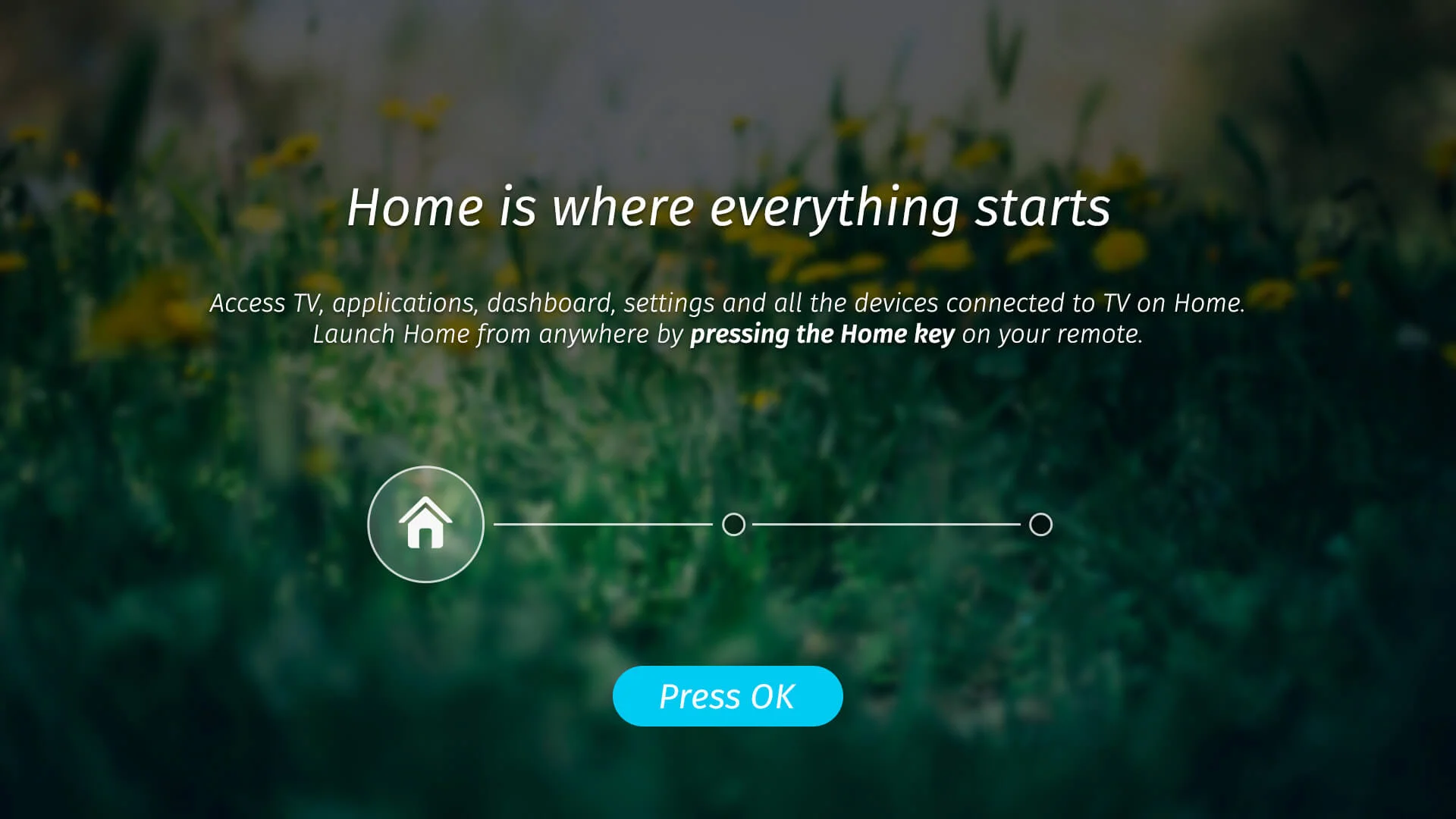
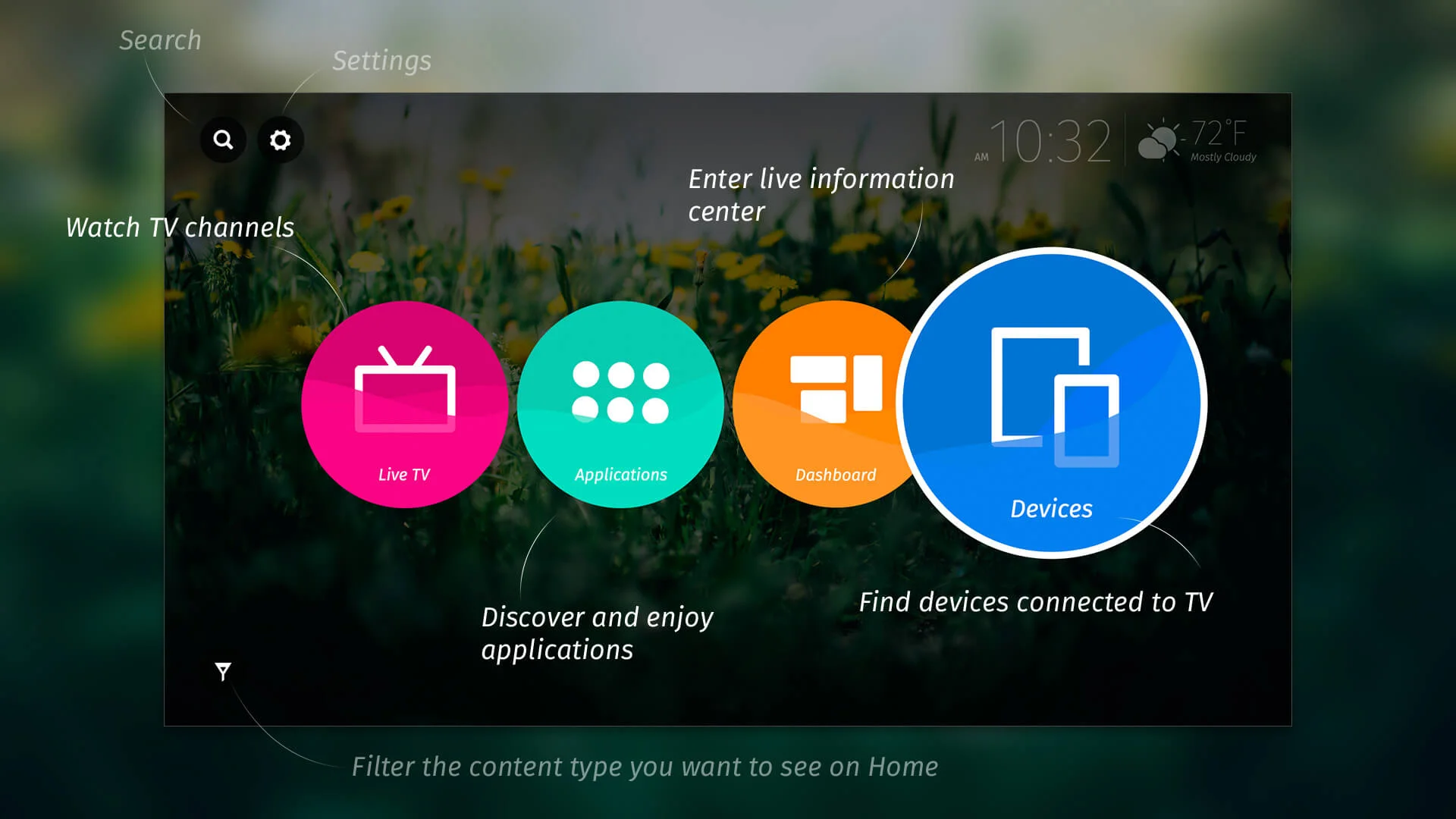
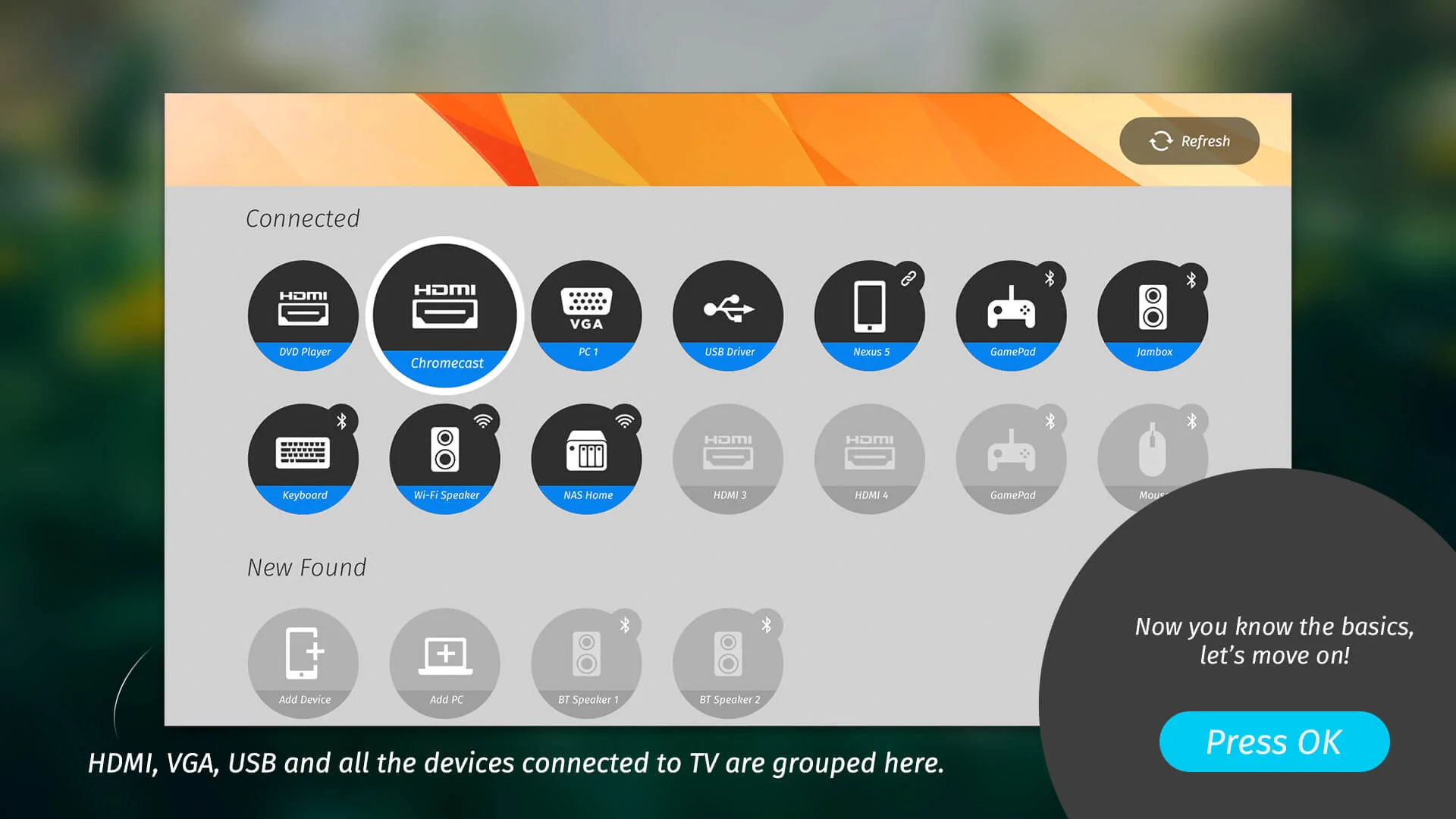
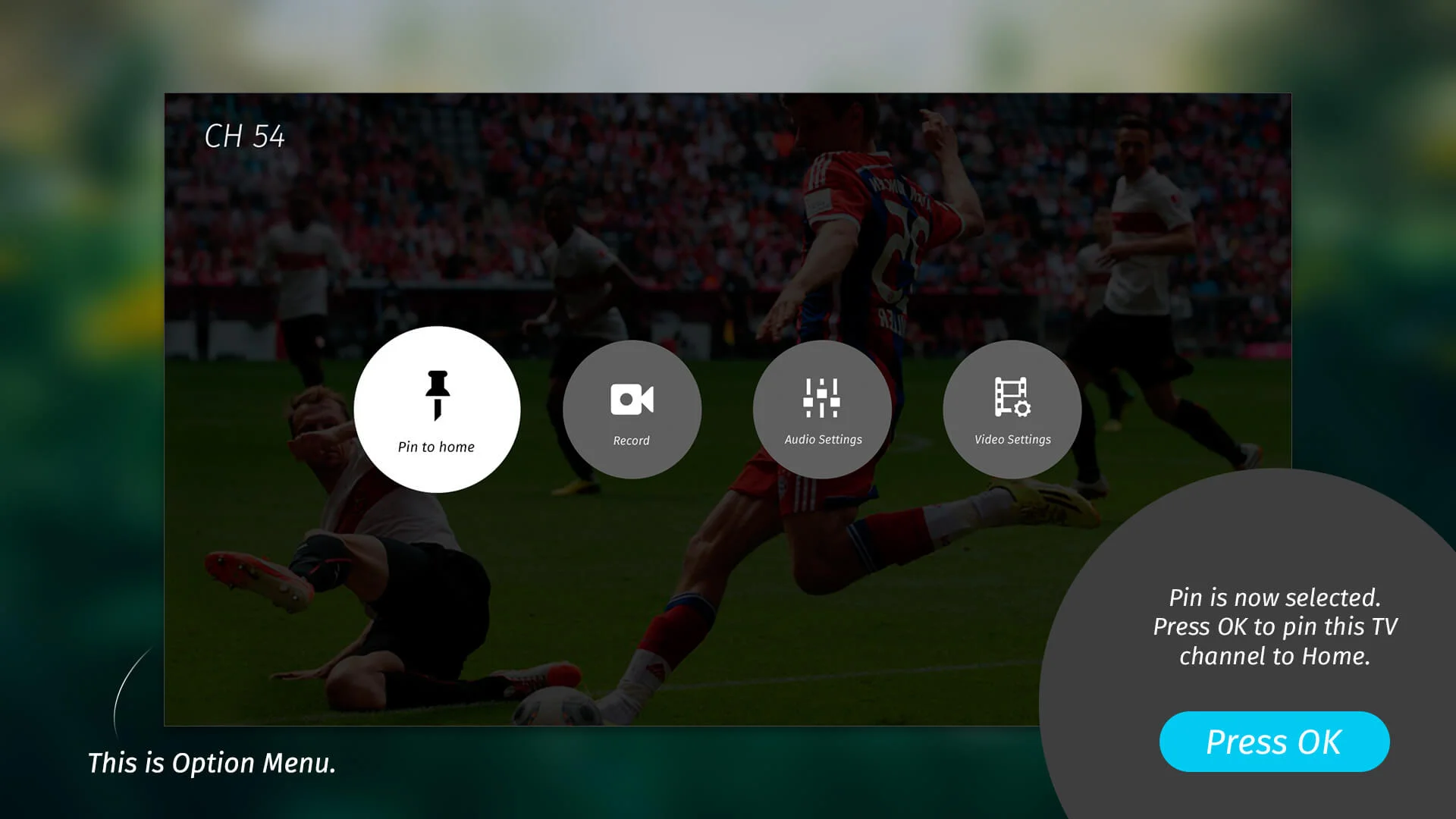
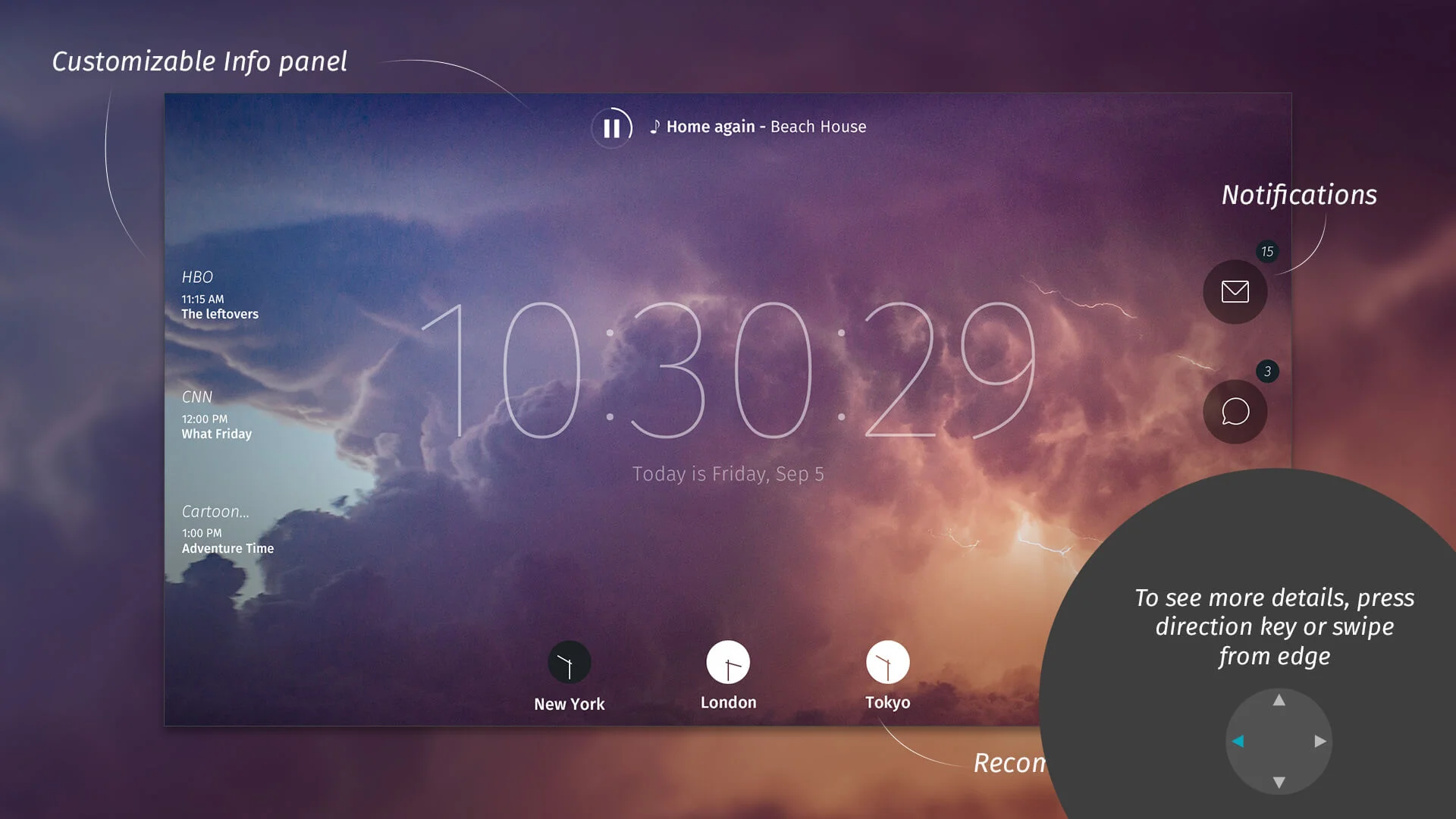
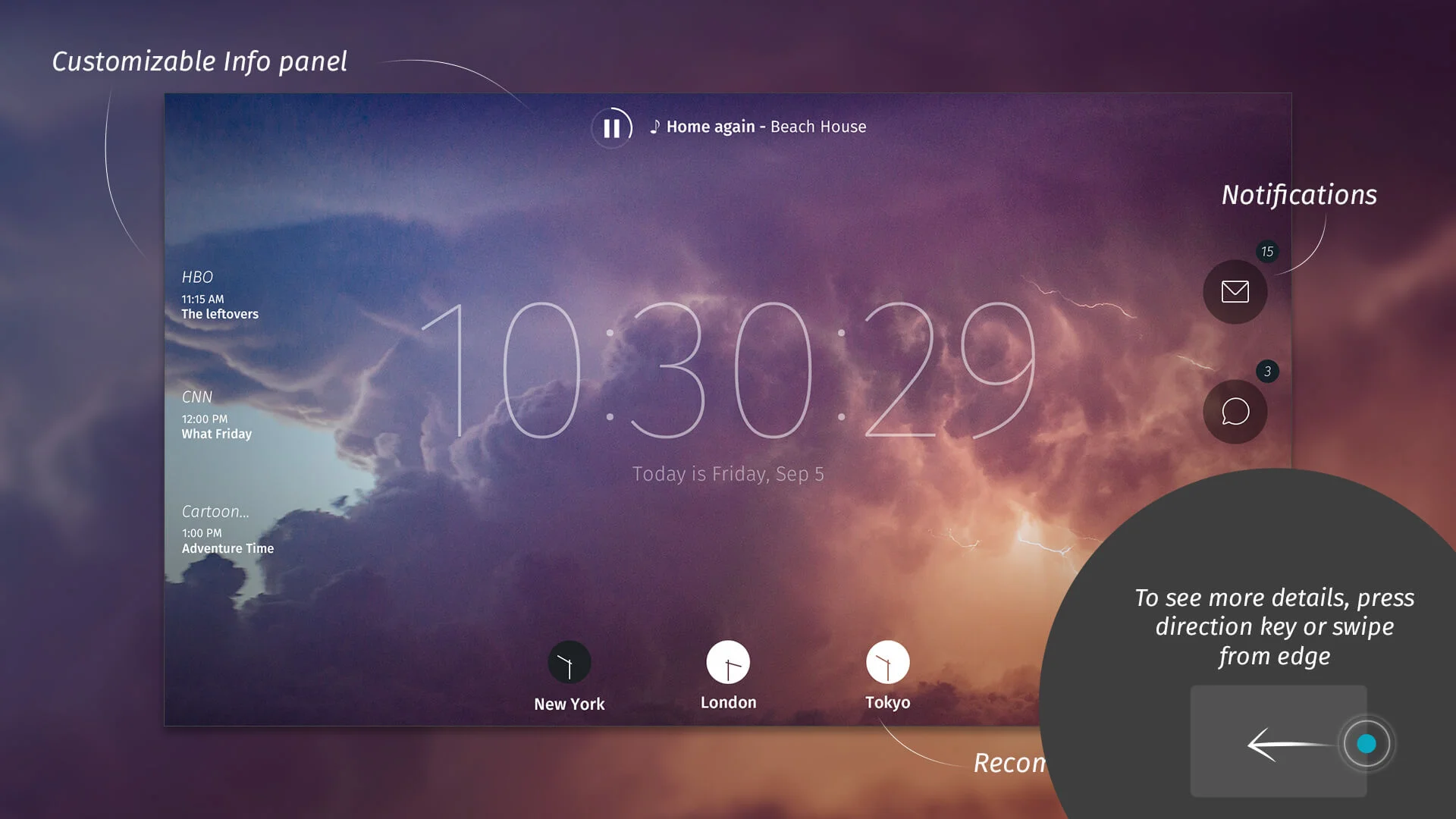
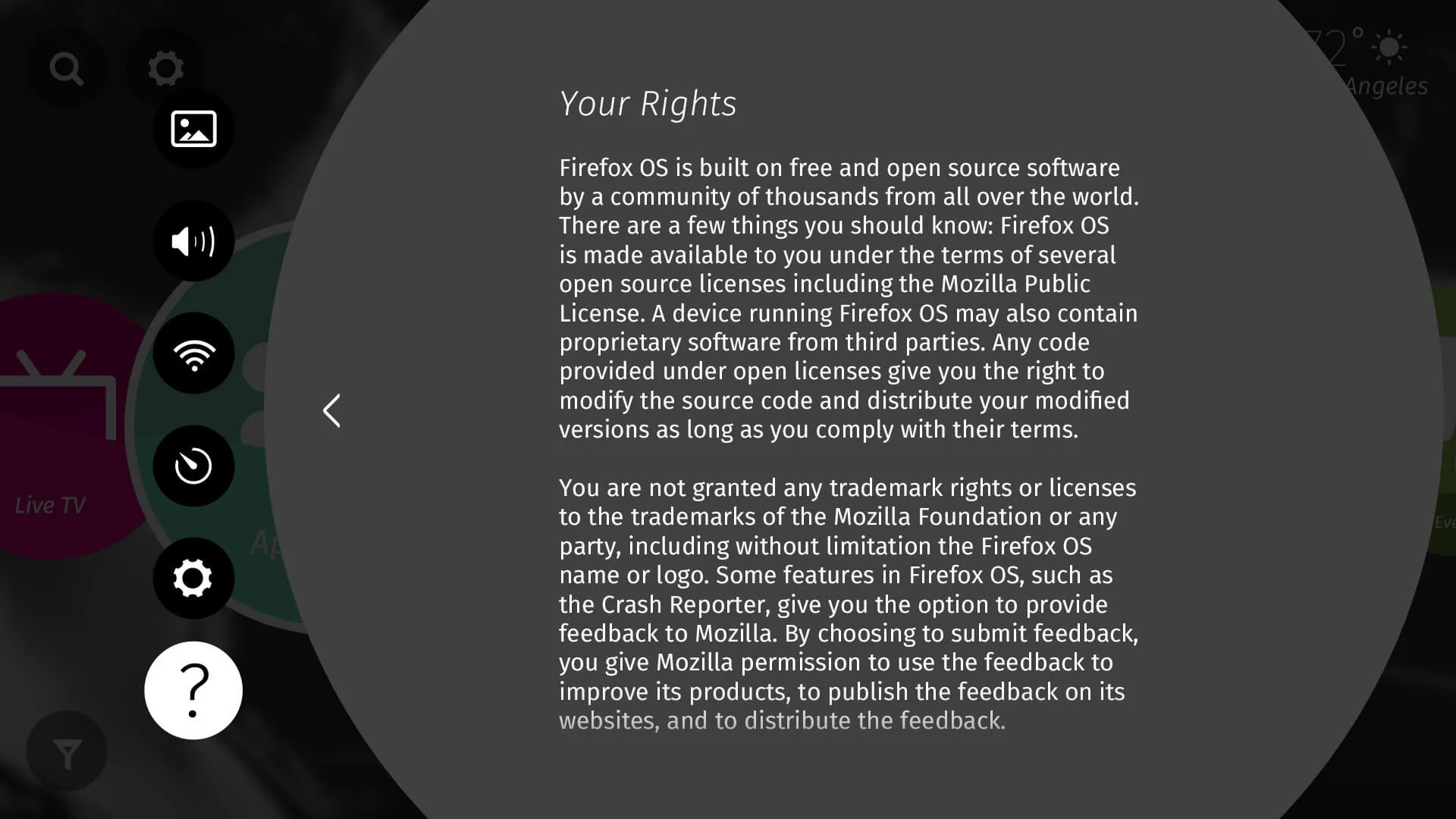
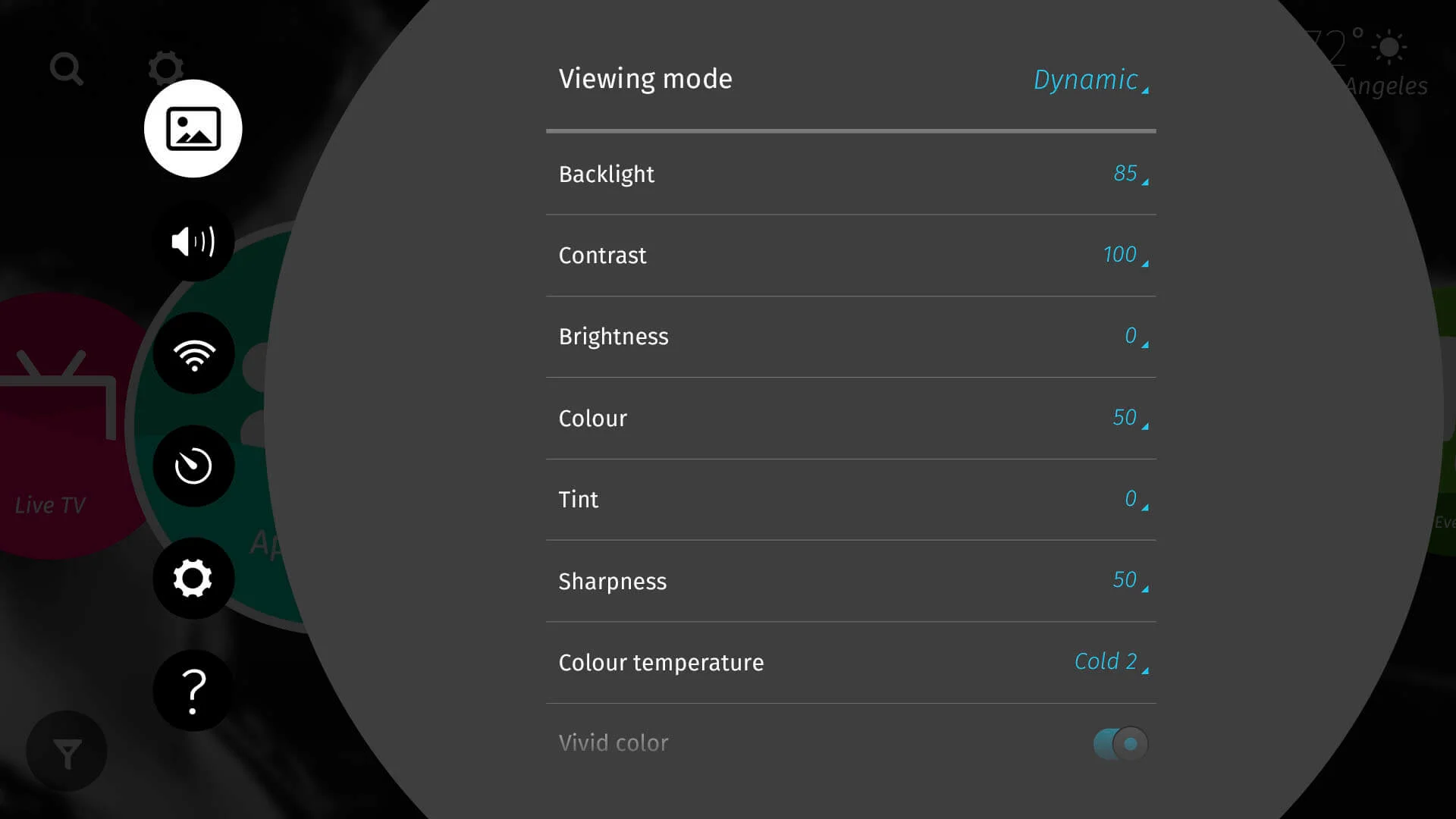
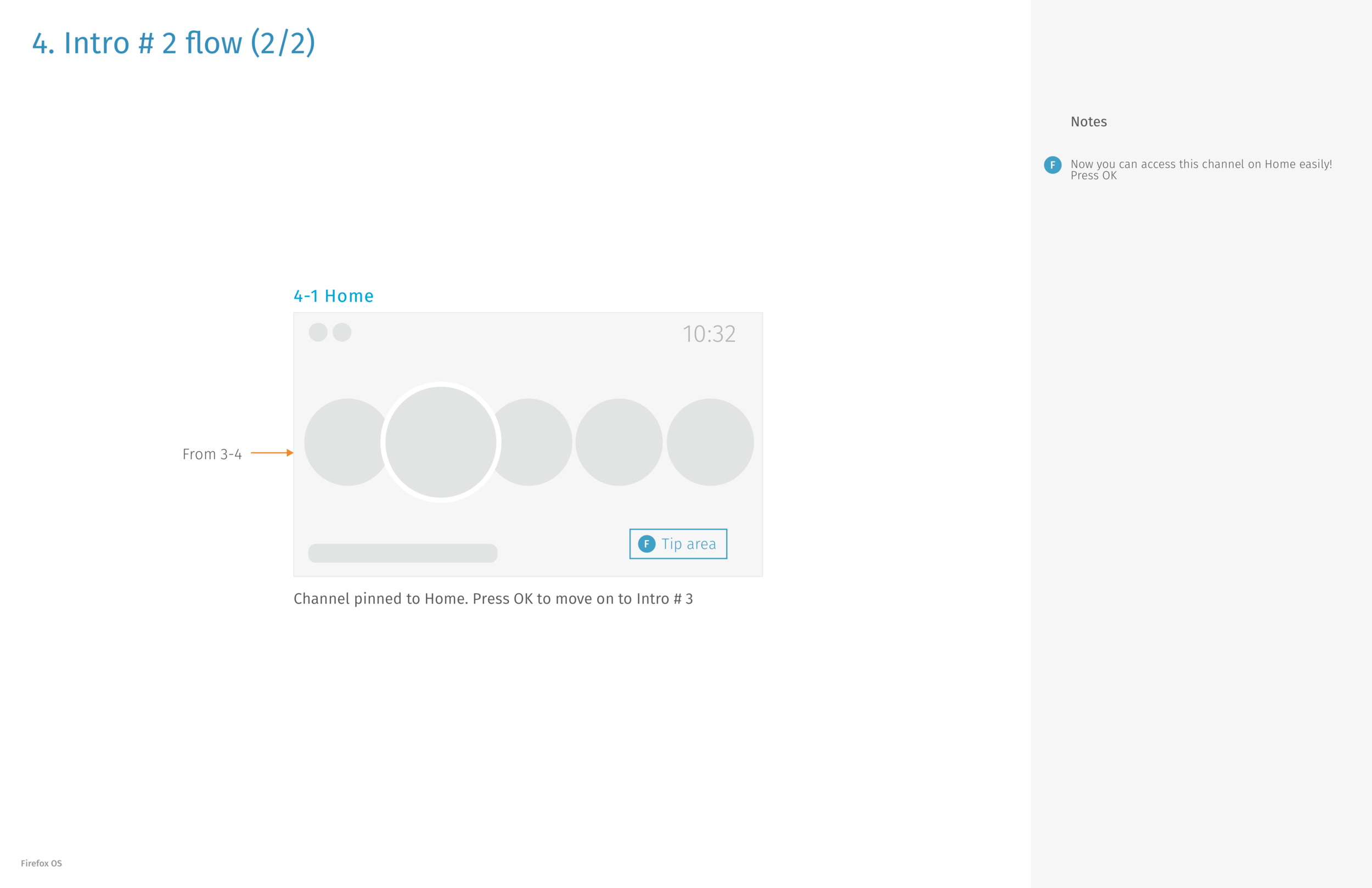
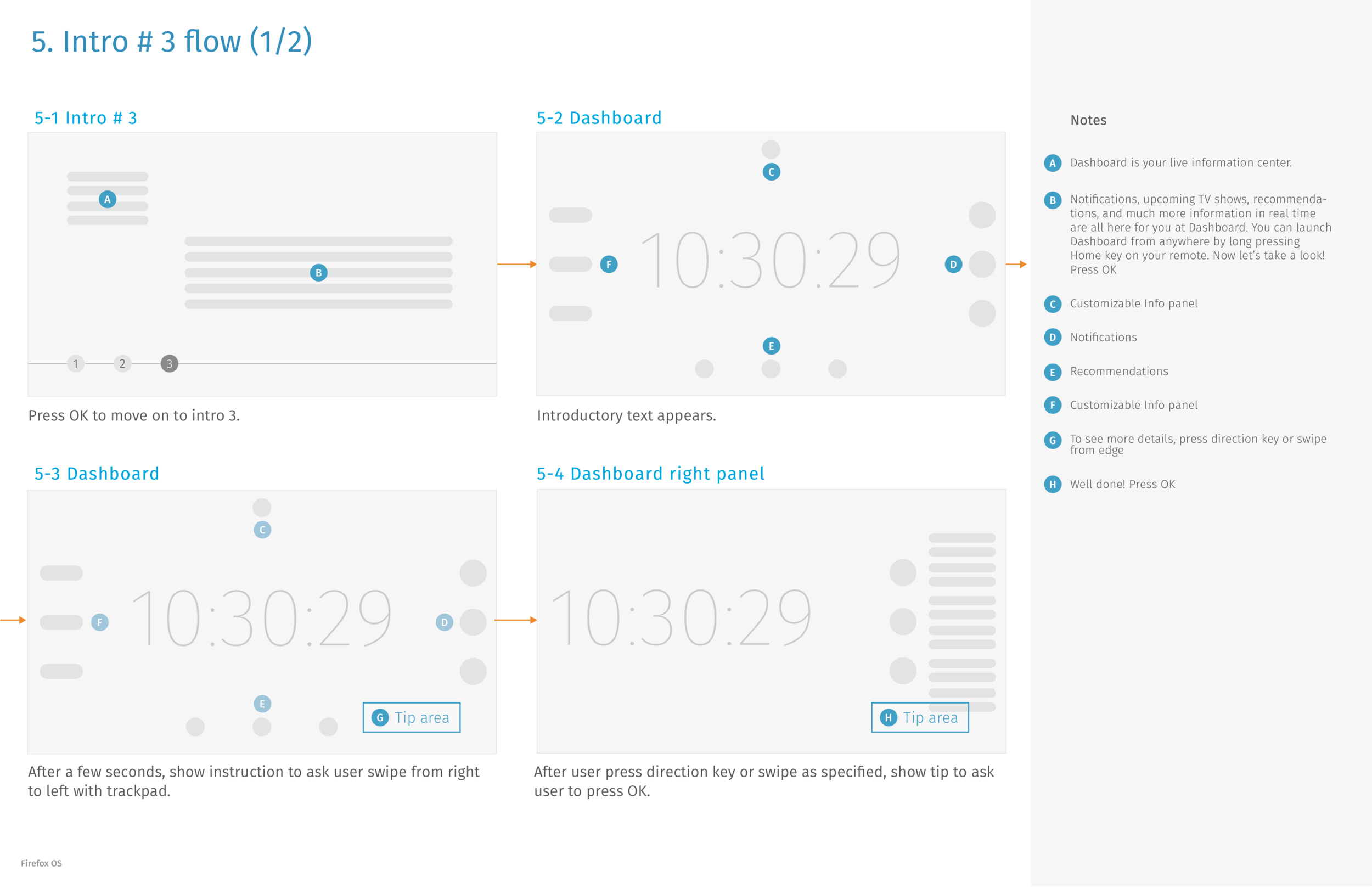
Tutorial opener explains the Home key and tells viewers to press OK to continueHome screen: four big colored circles, each labeled with what it doesDevices page groups everything plugged into or paired with the TV in one placeOption menu on a live channel, teaching viewers to pin favorites to HomeDashboard tutorial step: a live information center with a prompt to press a direction keySame dashboard step for touchpad remotes, teaching a swipe from the edgeSettings legal page, readable from the couch with large text and a simple icon menuPicture settings laid out as a simple list of values that are easy to navigate with a remote
- Visual credit Ceci Cheng.
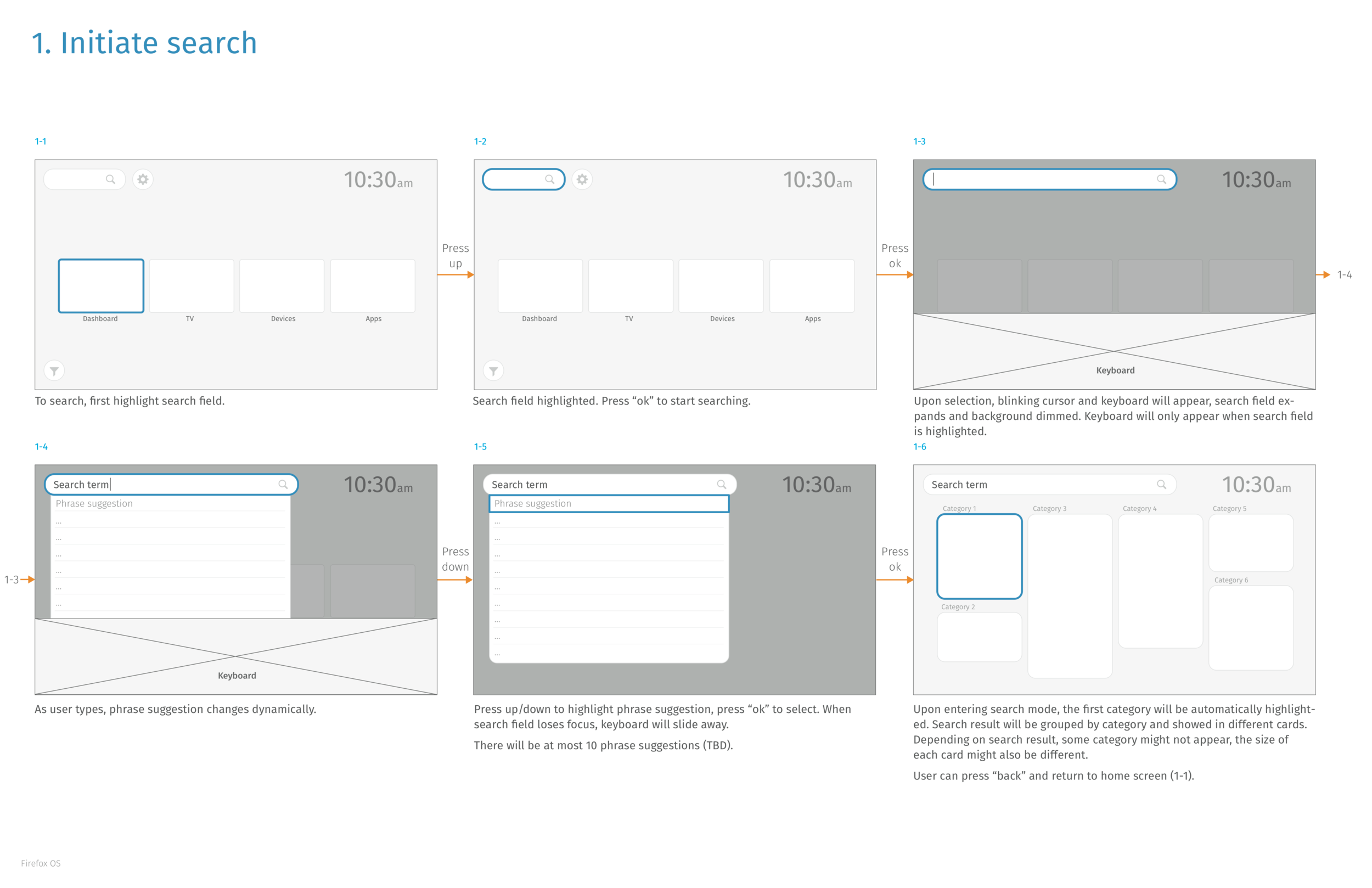
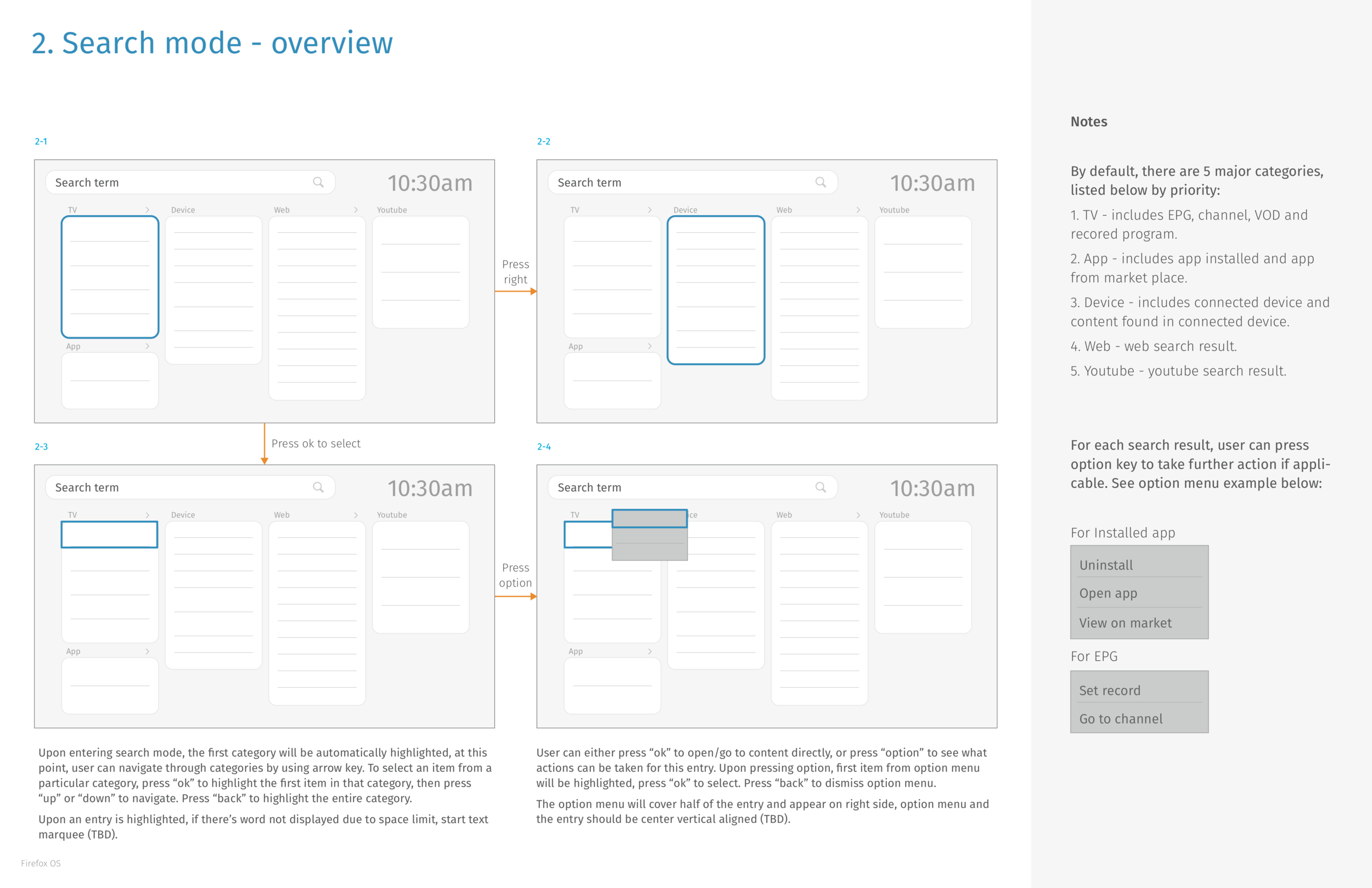
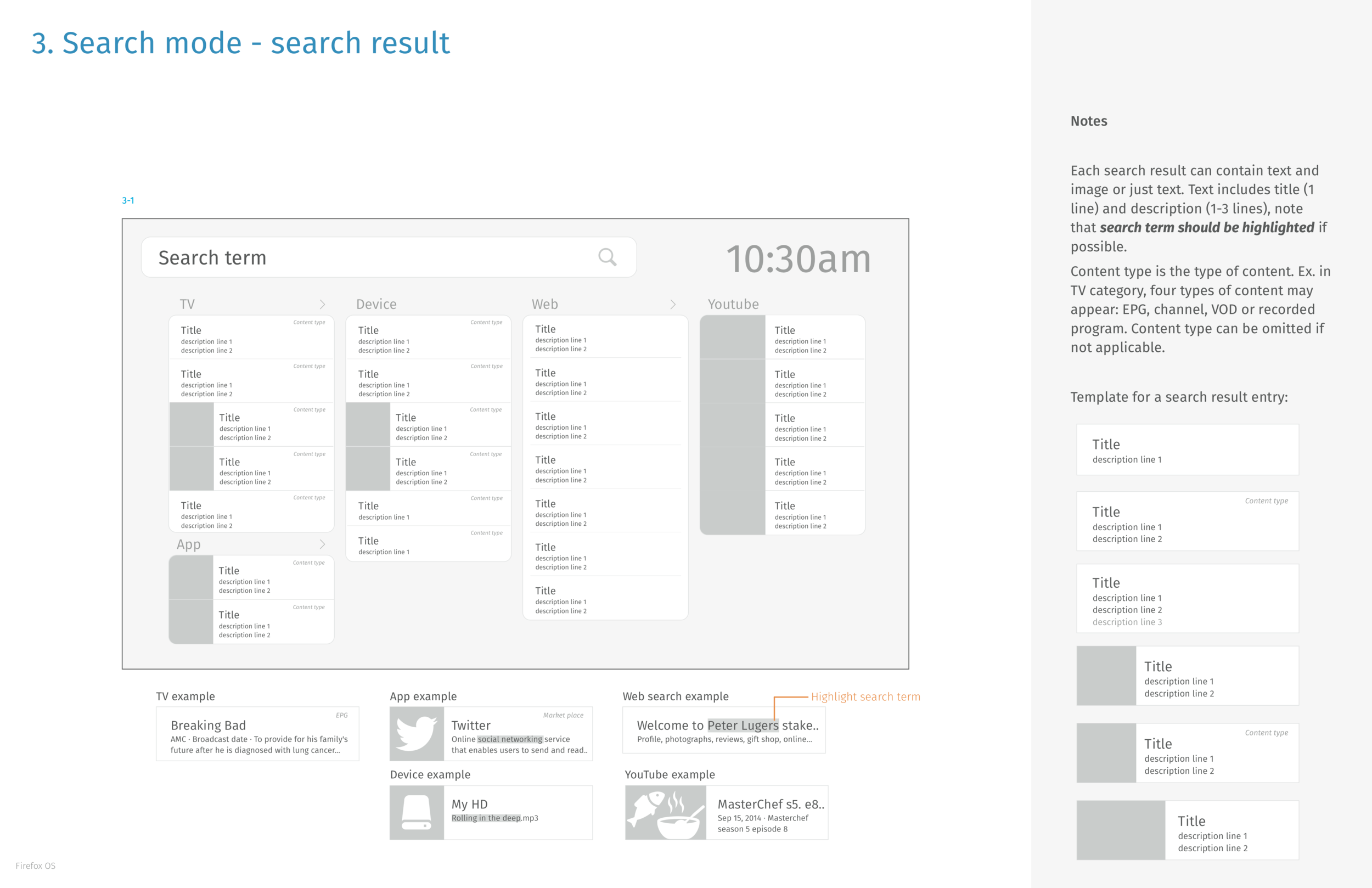
One thing to bear in mind when designing for big screens is that the distance between the user and the device; the amount of information the user perceives at once and the interaction model are quite different from handheld devices. We want to make sure that the users can focus on their task and know exactly where they are every step of the way. For example, search results are clearly categorized with cards.
Main contribution
• Collaborated with team and brainstormed ideas on the concept of TV apps. • Designed and created TV app wireframes including Search, Settings and Tutorials.
Sample wireframe
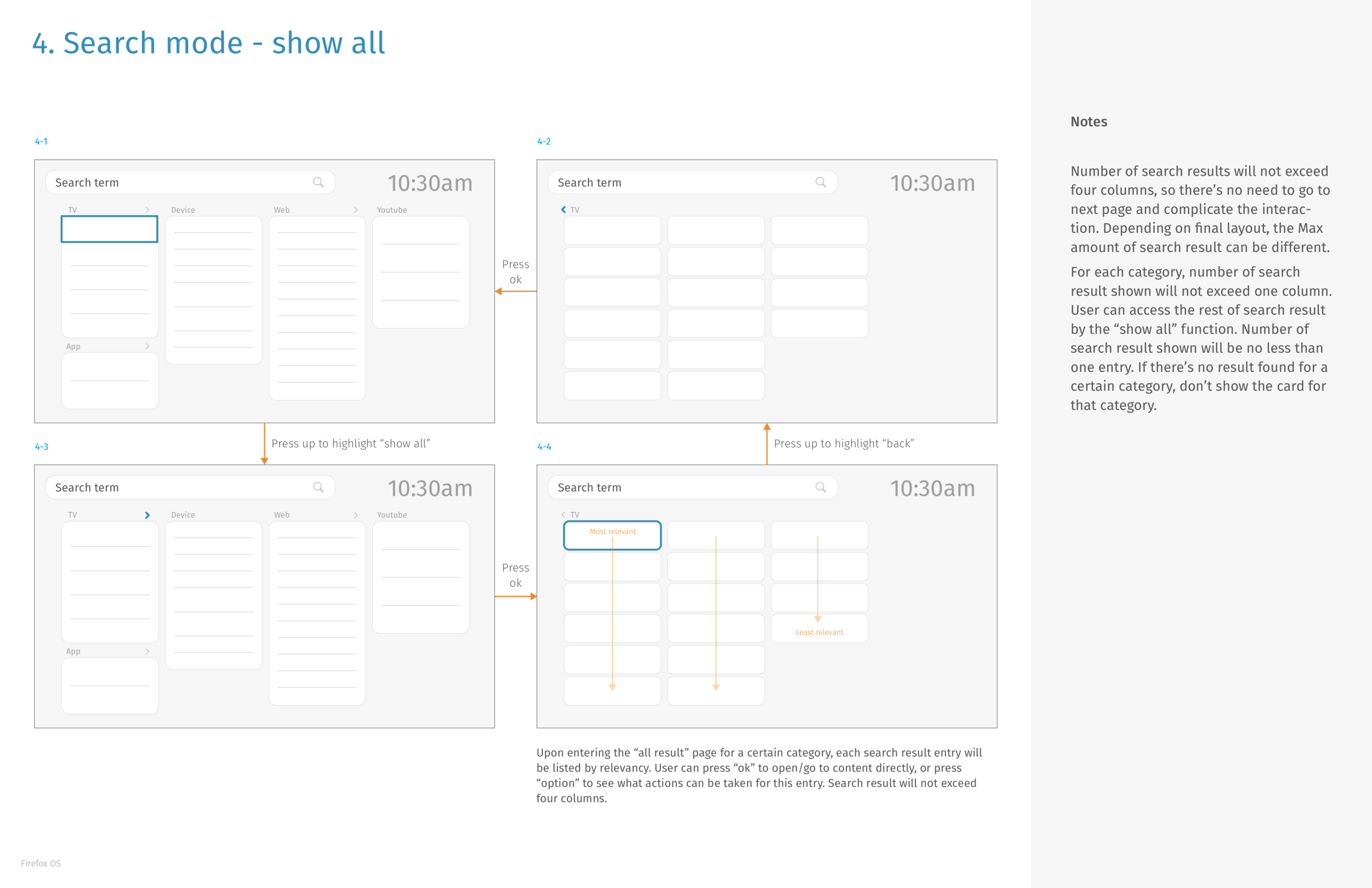
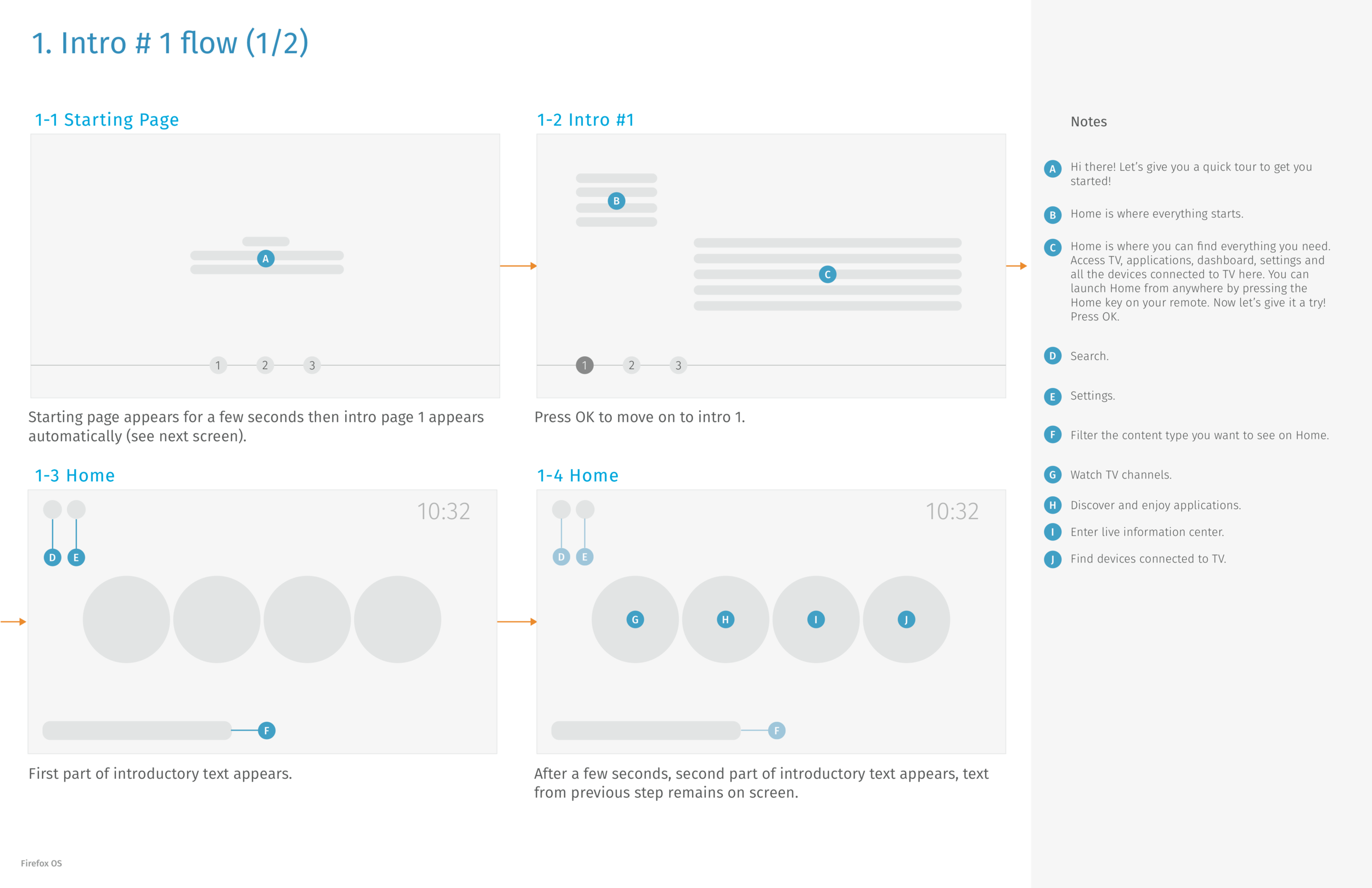
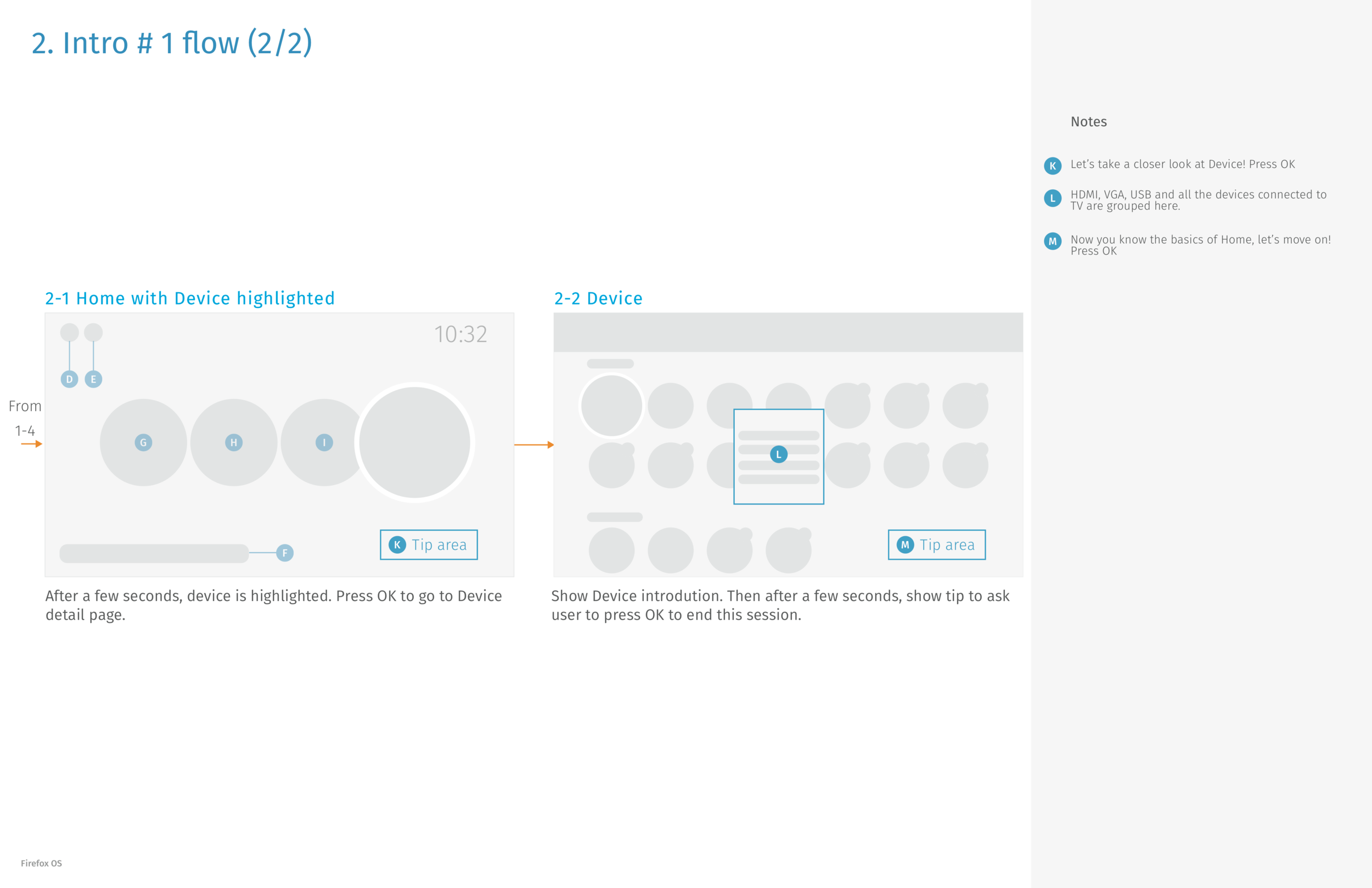
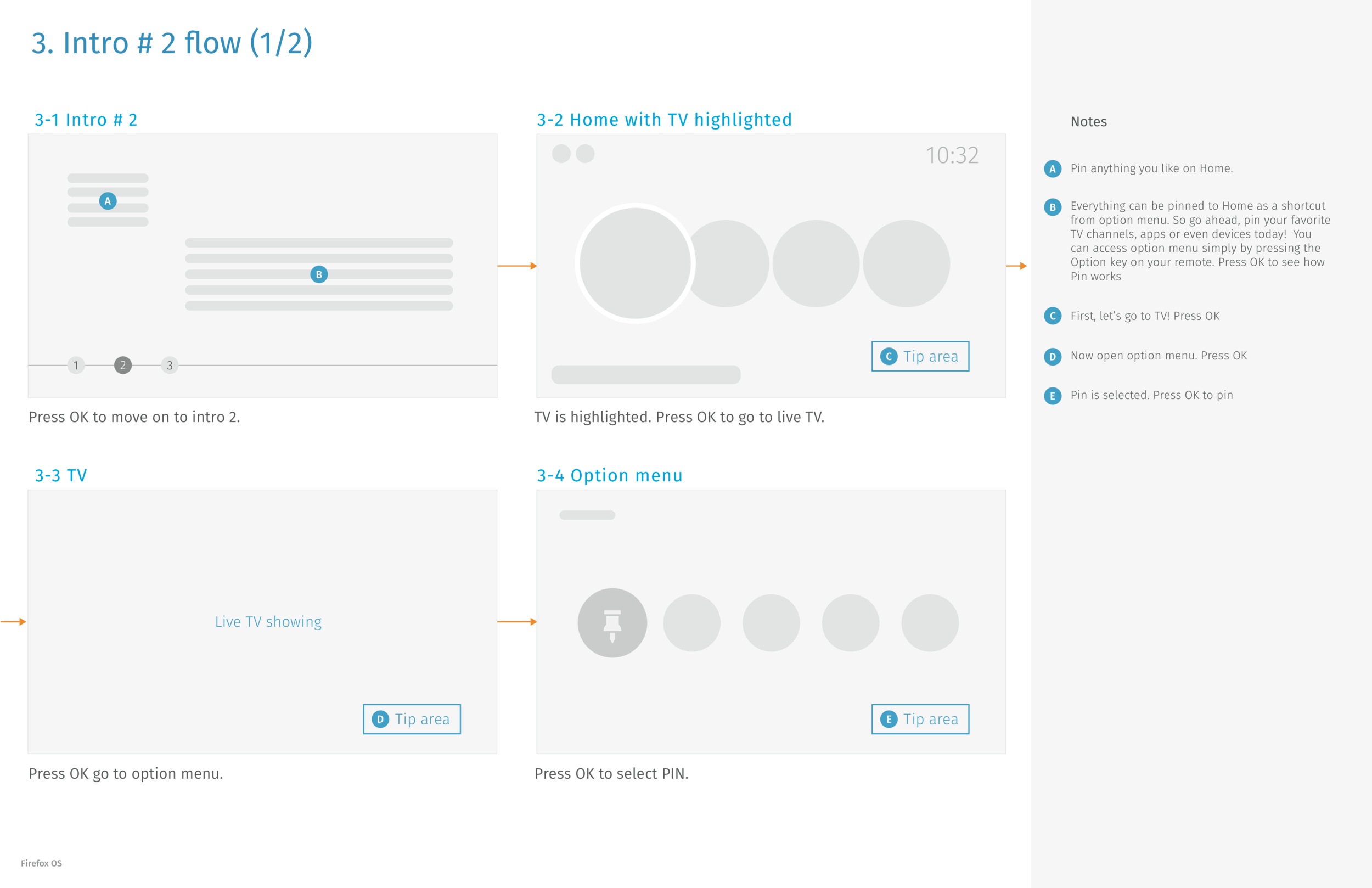
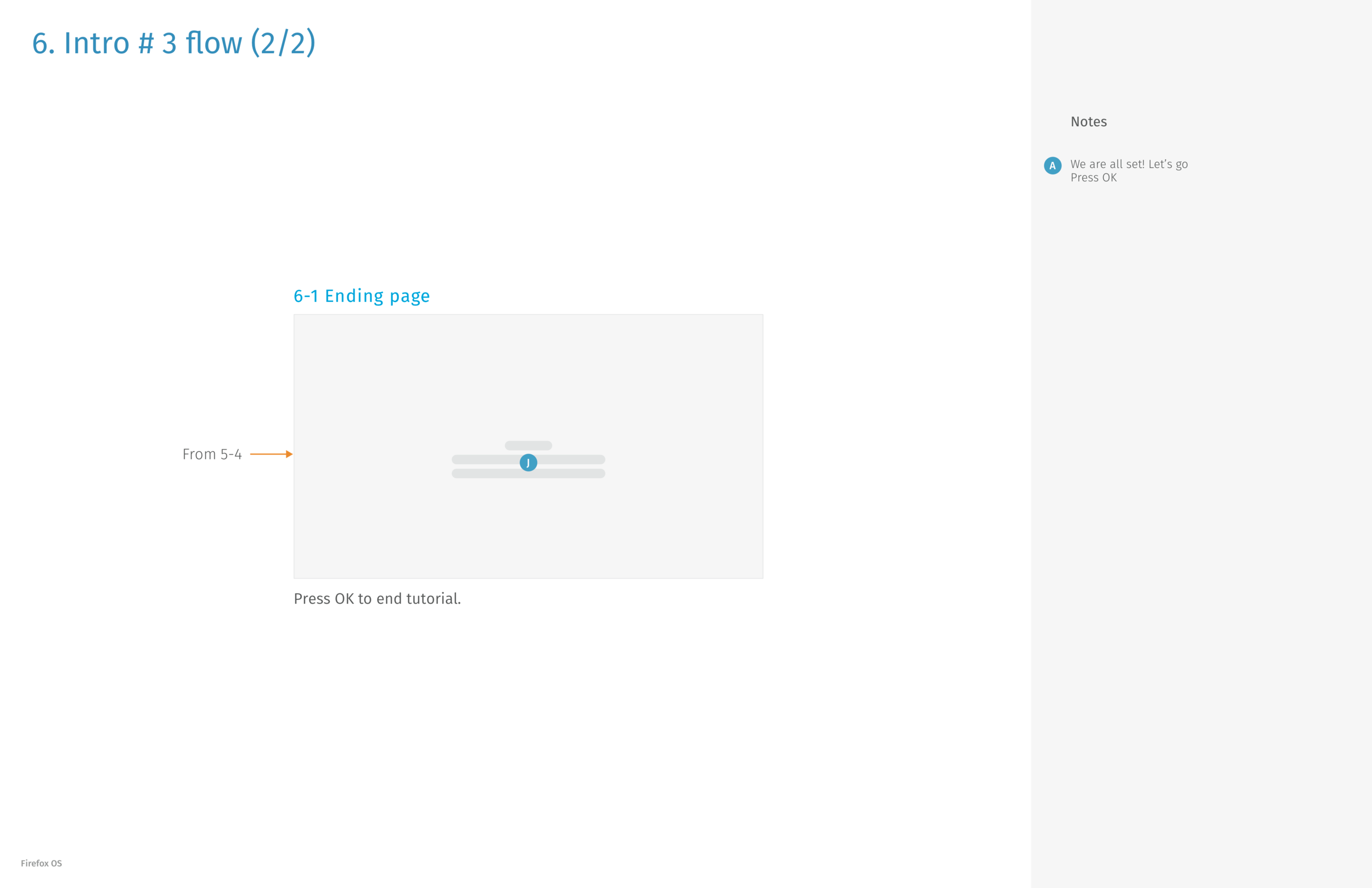
Search flow step by step: select the search field, type, pick a suggestion, see grouped resultsHow remote arrow keys move between result categories, plus an option menu for actions like uninstall or recordResult cards by category, with a reusable template for each entry and highlighted search termsShow all view lists every result in a category from most to least relevantTutorial part one: a welcome tour that introduces the Home screen and what each button doesTutorial guides viewers into the Devices page, with tip areas telling them what to pressTutorial part two: viewers learn to pin a TV channel to Home through the option menuConfirmation step: the pinned channel now appears on Home for quick accessTutorial part three: the Dashboard, with a prompt to swipe from the edge for detailsFinal screen ends the tutorial with a single press of OK